.png?width=2015&height=583&name=Logo%20Transparent%20(1).png)
- Pre-Work
- Company Owner's
- Contact Owner's
- Renewals and Collections Deal Owner's
- Adding a New Appfolio Group
- Removing an Appfolio Group
Pre-Work
Before adding a new group in Appfolio, add the desired group to the Company Owner's Workflow in the next section of this article. This will ensure that when the bridge runs, the company owner's, contact owner's, Renewal's Deal Owners and Collection's Deal Owners will update when the bridge runs.
WARNING: The Appfolio Group that you add IE: 1.01 - Marisa's Properties MUST be formatted in exactly the same way in HubSpot to ensure the workflow will work properly. Extra spaces, capitalization, etc. will cause the workflow to fail.
Company Owner's
NOTE: There is a limit of 20 if/then branches in a workflow. A secondary if/then branch has been started in this workflow.
- The workflow will fire when an Appfolio Group's property value has changed on the company record or it has been updated in the last day.
- The workflow will check the following branches:
- 1.01 - Marisa's Properties
- 1.02 - Ashton's Properties
- 1.03 - M. Zalk's Properties
- 1.04 - Diego's Properties
- 1.05 - Briana's Properties
- 1.08 - Olivia's Properties
- 1.09 - M. Lantz's Properties
- 1.10 - Ashley's Properties
- 1.11 - Yoni's Properties
- 1.12 - Wakel's Properties
- 1.13 - Brian's Properties
- 1.15 - Dan's Properties
- 1.16 - Cynthia's Properties
- 2.01 - Chris' Properties
- 2.02 - M. Davis' Properties
- 2.03 - Caleb's Properties
- 2.04 - Kaity's Properties
- 2.07 - Eric's Properties
- 3.01 - Danielle's Properties
- 3.03 - Dan Tobin's Properties
- 2.06 - Aaron's Properties
- The workflow will then set the company owner to the correct HubSpot user that is mapped via the workflow.
- A deal property will also be set, [Appfolio Groups] Owner Updated, to yes. This will then trigger the next workflow to update the deals in the Delinquencies or Renewals pipeline to update the Deal owner to the Company Owner that was just set.
Contact Owner's
- This is a HubSpot setting that is currently active in your HubSpot portal. When a company owner is updated, all contacts associated with that company will be updated to match the company owner.

Renewals and Collections Deal Owner's
- This workflow will fire when a new Renewal or Delinquency deal is created OR a current deal in the Renewal or Delinquency pipeline has the property [Appfolio Groups] Owner Updated, set to yes from the company workflow.
- This will then copy the company owner to the deal owner for the Renewals and Delinquency deals.
WARNING: This includes all closed won or closed lost deals. It will update all deals that are associated with the company to the new deal owner.
Adding a New Appfolio Group:
- It is recommended that you first update the HubSpot workflow. Then update Appfolio. This will ensure that when the bridge fires, the workflow has the information necessary to make the updates to the Company, Contact and Deal Owners.
- Navigate to this workflow
- If you are just adding a new group, scroll to the far right of the workflow
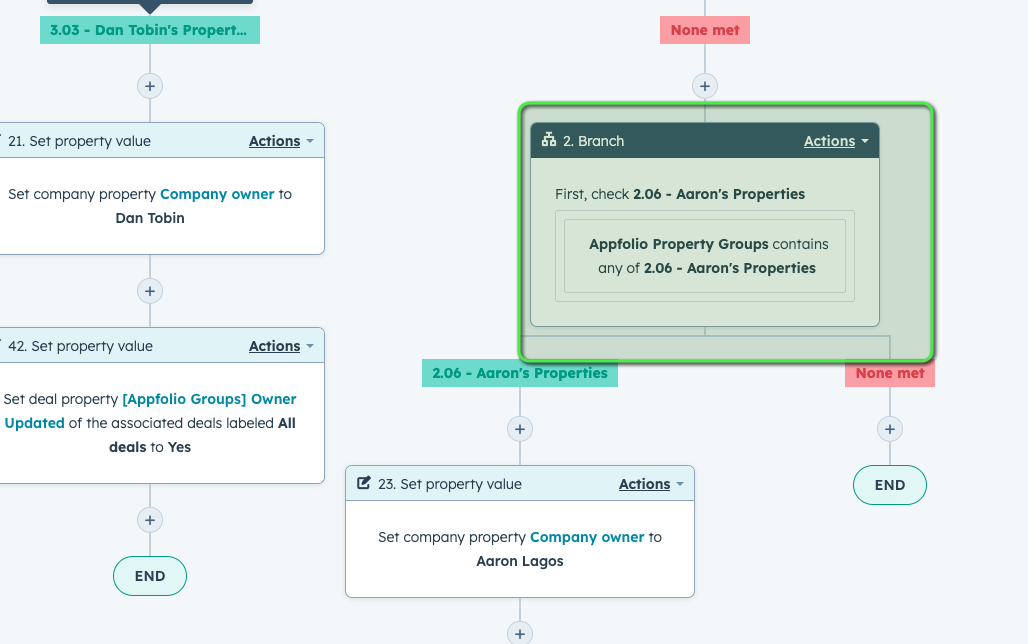
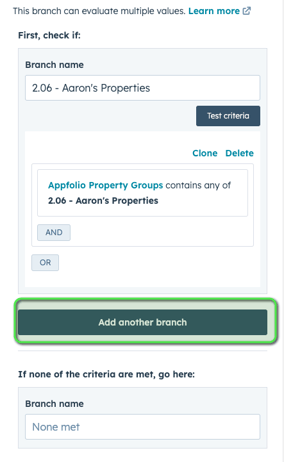
- Then click into the if/then branch highlighted above and click on Add another branch
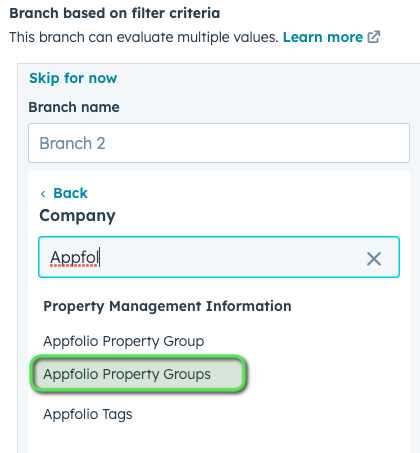
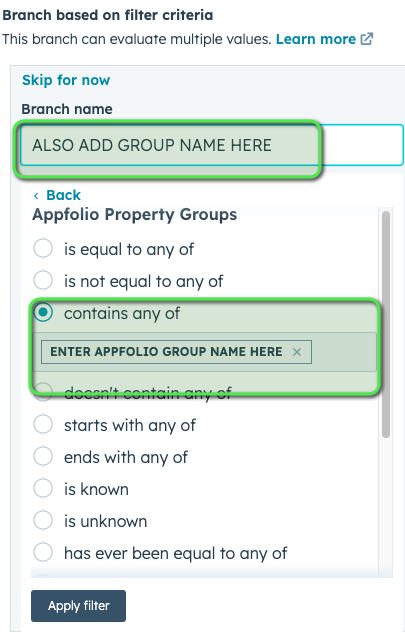
- Filter type = Company, search for Appfolio Property Groups
- Select, contains any of as your filter and copy and paste the Appfolio Group Name exactly as it is in Appfolio. Spaces, capitalization, punctuation ALL matter here. Also copy that same name into the Branch name as well. Then click apply filter and save.
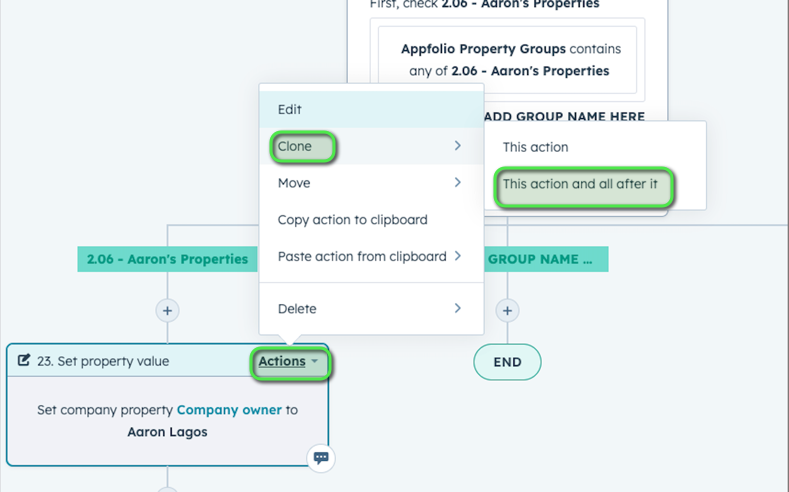
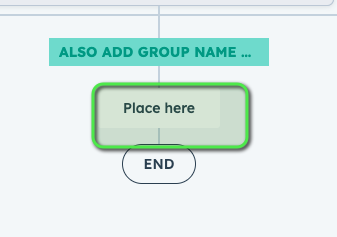
- Within the workflow you will see a new branch appear. On the branch next to the branch you just created that has steps in it. Click on the first step, Actions, clone, this action and all after it, then select the place here under the branch that you just created and then SAVE.
- Next edit the first step by clicking on the first step:
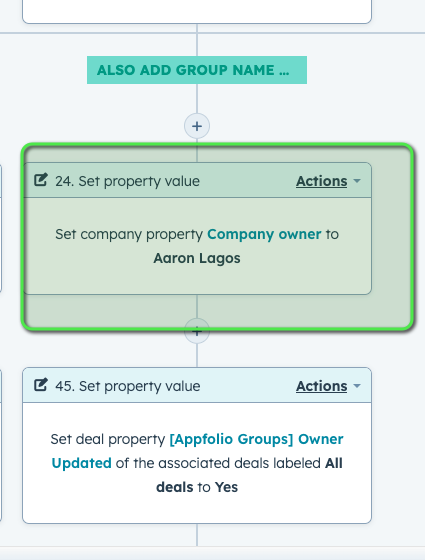
- Select the new company owner:
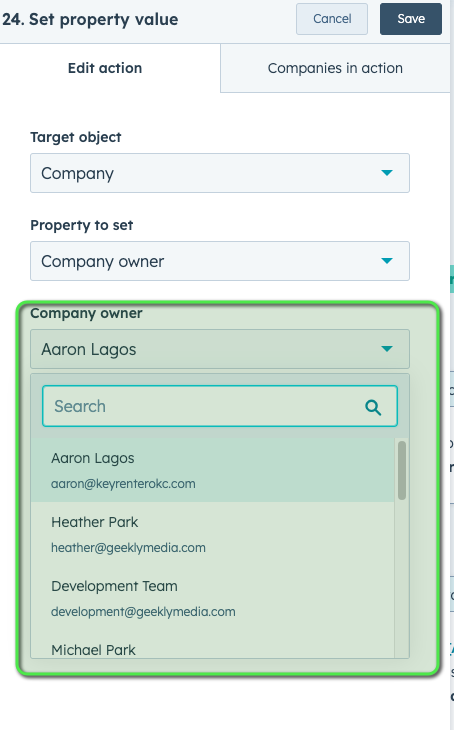
WARNING: The new company owner MUST be a user in HubSpot.
Removing an Appfolio Group:
- Navigate to the Company Workflow here.
- Scroll to the if/then branch and click into it.
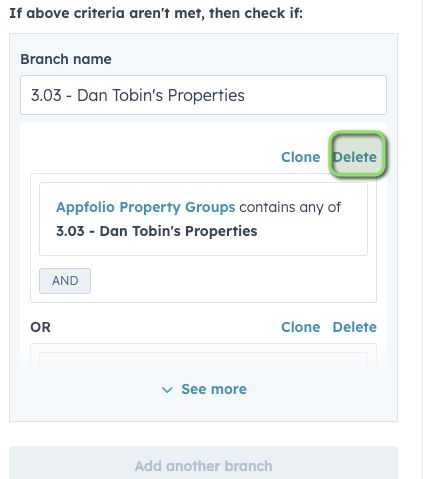
- Find the Appfolio Property Group that you would like to remove and click the DELETE option above it. Then click on SAVE.